Settings
You can reach the game settings from the main menu by selecting the  or in-game pause menu by selecting Settings.
The settings menu may connect the following tabs (depending on the connected input devices):
Interface
The interface settings cover settings regarding the user interface of the game.
When accessing the settings from the main menu, it is possible to change the Language used by the game in the first section. See the languages page for a list of currently supported languages.
The second section Interface Scaling offers two options for the user interface scale. The Text Scaling offers three presets for the texts all across the user interface. The Game UI Scaling allows scaling down the user interface on larger screens.
The Localization section offers several settings for the technical and measurement units:
Money Number Formatcan either be theFullorShortformat.Distance and Speed Unitscan either be theMetricorImperialunits.Power Unitscan either beKilowatt (kW)orHorsepower (hp).Weight Unitscan either beTonne (t),Kilogram (kg),Short Tonne (t)orPounds (lb).Force Unitscan either beKilonewton (kN),Kilogram-Force (kgf)orPound Force (lbf).
The HUD section allows to set preferences regarding the 3D viewport:
Prevent Overlapping Iconschanges when HUD icons are spread out to avoid overlapping.Rain Screen Effectdefines when the raindrop effect on the screen is visible. It can either be disabled, only be used in the cockpit camera or always on when it rains.Cloud Transparencychanges which part of the clouds should be transparent when zoomed out. It can either be disabled, focused on the screen center or near the mouse cursor.
The Miscellaneous section offers the possibility to disable the celebration events when there are specific milestones in the game.
Mouse, Keyboard & Controller
The settings concerning input devices are explained in the controls section.
Graphics
On PlayStation® 5 and Xbox Series X|S only a graphics mode can be selected.
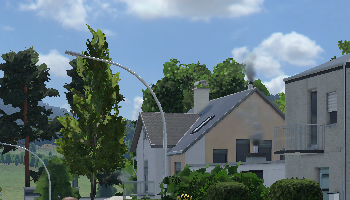
low graphic preset

very high graphic preset
The Window Settings contain settings regarding the application window. The Display Mode can be set to Windowed, Borderless and Fullscreen mode. It is possible to switch between them by pressing ALT + ENTER / ⌥ + ENTER. The resolution for fullscreen mode can only be set from the main menu, not in-game. The Resolution Scale can be used to reduce the rendering resolution for the main viewport to reduce the performance load. It is also possible to enable or disable VSync.
The visualization is one of the performance bottlenecks. Thus it is important to find the right balance between good performance and beautiful graphics. There are several aspects available for adjusting. It's possible to use a preset too:
| Low | Medium | High | Very High | |
|---|---|---|---|---|
| Textures | Low | High | High | Very High |
| Terrain textures | Low | High | High | Very High |
| Anti-aliasing | Off | 2× | 4× | 4× |
| Ambient occlusion (SSAO) | Off | On | On | On |
| Reflections (SSR) | Off | Medium | High | High |
| Geometry | Low | Medium | High | High |
| Shadows | Low | Medium | High | High |
| Terrain | Low | Medium | High | High |
| Grass | Off | Medium | High | High |
Audio
The game provides background music as well as a voice over in the campaign. It is possible to:
- Disable the Music in the game completely.
- Disable the Menu Music in the main menu.
- Disable the Splash Screen Sound on startup of the game.
- Disable the Voice-Over in the campaign missions.
If more than one playlist is available, it is possible to select the Default Playlist.
Furthermore the volume can be adjusted for:
- All Sounds and Music (master)
- Sound Effects
- Music
- Voice-Over
Some sound effects can also be disabled completely:
- Bulldozer sounds
- Construction sounds
Advanced
On Console, not all settings are available.
The Advanced Settings section offers the following options:
Enable Background Contrast Layerallows to change which background is used in line management and module building modes.Drag-and-Confirm Construction Modeallows switching to the old track and road build mode from Transport Fever 2.Enable Advanced Camera Toolactivates the camera tool.Enable GUI Effectsactivates subtle interface animations.Autosave Intervalsets the interval of autosaves.Autosaves To Keepsets the number of autosaves that are stored at the same time. They are overwriten in a round-robin manner.Use System Mouse Cursorcan be enabled to let the cursor be rendered by the operating system instead of the game.
Further Debug Options are also available:
Debug Modeenables various short cuts and the debug menu accessible with Right Alt + D.Show Missing Resources Dialogenables a dialog listing missing resources after load of savegames.Send Crash Reportssends an anonymized crash report after a crash or fatal error to Urban Games to help bugtracking.Show Unsupported Hardware Warningdisplays a warning if unsupported hardware like integrated GPUs are used.Show Video Memory Usage Warningdisplays a warning if the graphic settings are too high.
The Open User Data Folder button opens a file browser and navigates to the Transport Fever 3 userdata folder.
In rare cases, it may happen that the mouse arrow is not displayed in full screen mode. Then it often helps to switch to window mode with ALT+ENTER and let the cursor render on the software side by switching off Use hardware mouse cursor.
Experimental Settings
Additional advanced settings are available in the settings.lua file. These settings can only be changed by editing the file with a text editor while the game is not running. They are not available on console.
These settings should only be changed by advanced users. Use at your own risk!
| Property | Possible values | Description |
|---|---|---|
| bloomQuality | 0, 1, 2 | Allows adjusting the quality of emissive bloom effect. 0 disables bloom completely |
| crashSaveEnabled | true (default), false | Allows to disable creation of crash saves completely. |
| crashSaveSingleFile | true, false (default) | If set to true, only one crash save will be created. If a second crash occurs, the old crash save will be overwritten. |
| customCameraManagerResolutions | List of value pairs | If pairs are listed, the camera tool offers these custom resolutions for screen captures. |
| customColors | A table with 10 rgb colors. Each color is a table itself with the format {red, green, blue}. Float values in the range 0.0 to 1.0 are expected for red, green and blue. | These are the custom colors that can be used for lines and vehicles. |
| debugInfoShowFps | true, false (default) | Shows the current FPS in the corner of the application if enabled. |
| deferredProposal | true, false (default) | Calculates the proposals for construction asynchronous and only shows result after computation is complete. |
| disableConstructionParticles | true, false (default) | Allows to disable smoke effects while constructing/demolishing completely. |
| disableMessageBox | true, false (default) | Allows skipping the crash info box after the application crashed. |
| enableDeferredTextures | true (default), false | Allows disabling texture streaming. |
| enableKeyboardMouse | true (default), false | Allows disabling the mouse and keyboard input. |
| enableMeshStreaming | true (default), false | Allows disabling mesh streaming. |
| experimentalMailboxPresent | true, false (default) | Allows to enable experimental mailboxes in render pipeline. |
| experimentalMapFeatures | true, false (default) | Enables experimental map sizes and allows changing the economy for existing savegames. |
| experimentalOptimizeShaders | true, false (default) | Allows to enable experimental optimized shaders in render pipeline. |
| experimentalSwapChainSize | -1 (default), 2, 3 | Allows to manually set a swap chain size in render pipeline. |
| experimentalTerrainGeneratorEditor | true, false (default) | Enables the terrain generator node editor. |
| experimentalTunnelAndBridgeMinHeight | true, false (default) | Enables experimental minimum height sliders for tunnels and bridges. |
| externalModPath | Filepath | Allows configuring a custom mod directory for builtin mods. |
| graphicalDeviceOverride | -1 (default), 0, 1, … | Allows manually selecting a specific GPU for the rendering pipeline. |
| guideSystemActive | true (default), false | Allows disabling the guide system hints in the tutorial and campaign. |
| modHubVerboseLogging | true, false (default) | Allows additional stdout logs for mod hub network connection. |
| keyboardCameraSpeed.cameraTool | Float value in the range 0.0 to 1.0. Default is 0.5 | Controls the speed of the camera while using the camera tool. |
| keyboardCameraSpeed.cockpit | Controls the speed of the camera while using the cockpit camera. | |
| keyboardCameraSpeed.game | Controls the speed of the normal game camera. |
If some settings are broken and there are problems with using the in-game settings menu, the settings can be reset to default values by deleting the settings.lua in the userdata folder.