Table of Contents
Controls
The game interface can be used with mouse only, mouse and keyboard and controller. There is a wide range of hot keys available for various purposes, for example to change the game speed or to open a certain menu or overlay. For a complete list, refer to the tables containing the default mapping below.
Camera
The camera can be controlled both by mouse input or keys. The default controls with the keyboard are:
- W A S D keys to move the camera in direction of the upper, left, lower and right edge of screen/window
- Q and E keys to rotate the camera clockwise and counter clockwise
- R and F keys to tilt the camera angle up and down
- X and Y/Z keys to zoom the camera in and out


 and

- Hold right mouse button to drag the camera up, left, down or right
- Move the mouse cursor to the edge of the screen to move the camera up, left, down or right (only when edge-scrolling is active)
- Hold mouse wheel (middle mouse key) to rotate and tilt the camera
- Roll mouse wheel to zoom the camera in and out
There is a free camera mode available, that can be used to move through the game world without restrictions. An advanced camera tool for screenshots and screen capturing is a free camera mode is available as well.
Music Player
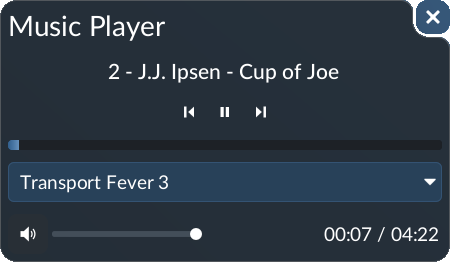
The music player can be opened by clicking on the  button in the bottom right corner of the toolbar. It features common controls for the music:

 replays the previous song.

 plays / pauses the music.
 skips to the next song.

 mute / unmute the music.
- The slider allows volume adjustments.
- If multiple playlists are available, it is possible to choose one with the dropdown.
Game Speed

The simulation can be sped up to fast forward simulation or paused depending on the needs in the current situation. The control buttons are located in the bottom right corner of the toolbar as displayed in the image on the right. There are four buttons for speed control:
 . The current speed is indicated
- pauses the game. Default key is SPACE.
- simulates at normal speed.
 simulates at doubled speed.
 simulates at 4× speed.
It is possible to cycle through the different speed levels with a key, the default one is TAB.
If the game can't keep up with the simulation speed due to the complexity of the game world, the speed will be reduced although a higher simulation speed is selected.
Change Control Settings
The mouse/keyboard settings and key mapping can be changed in the settings menu. You can reach it from the main menu by selecting the  button or in-game menu by selecting Settings and switching to the Mouse respectively Keyboard tab.
Mouse settings
This section covers any setting related to mouse input.
- When
Invert Panningis active, the camera is moved over the map in mouse direction while pressing the right mouse button. Otherwise, the behavior is as if the landscape is moved in mouse direction while the camera remains static. - When
Invert Rotationis active, the behavior is as if the landscape is rotated around the point in focus of the static camera. Otherwise it behaves as if the camera is moved around that point. - When
Invert Tiltis active, the camera angle becomes steeper (looking down from above) when the mouse is moved downwards while holding the middle mouse button or mouse wheel. Otherwise the tilting is opposite to the mouse movement. - When
Invert Zoomingis active, the camera zooms in, when the mouse wheel is scrolled down and zooms out if it is scrolled upwards. Otherwise the behavior is inverted. - When
Zoom In to Cursoris active, the camera zooms to the position where the cursor points. Otherwise it zooms to the center of the screen. - When
Zoom Out From Cursoris active, the camera zooms out from the position where the cursor points. Otherwise it zooms out from the center of the screen. - When
Continuous Zoomis active, zooming is step less. Otherwise there are several zoom levels between which is stepped. - The
Panning Modeis one of the following three:Simplemoves the camera evenly regardless of where you drag on the map.Perspectivemoves the camera more subtly for nearby points and more dramatically for distant points.Grabgrabs the map at a point and moves the camera accordingly.
- When
Edge Scrollingis active, the camera moves as soon as the cursor gets near the edge of the screen or game window. - The scrolling intensity can be adjusted with the
Mouse Wheel Sensitivityslider. - The default action for right clicks can be set to back with
Back With Right-Click.
Keyboard settings
This section covers any setting related to keyboard input.
- When
Invert Rotation Keysis active, the rotation direction of the two keys is reversed. - The camera sensitivity for pressing buttons on the keyboard can be adjusted with the
Camera Movement Speedslider.
Controller settings
This section covers any setting related to controller input.
- When
Invert Rotationis active, the behavior is as if the landscape is rotated around the center of the screen. Otherwise it behaves as if the camera is moved around that point. - When
Invert Tiltis active, the camera angle becomes steeper (looking down from above) when the right stick is moved downwards. Otherwise the tilting is opposite to the stick movement. - When
Invert Zoomis active, the camera zooms in, when pressing and zooms out when pressing
 . Otherwise the behavior is inverted.
- When
Swap Sticks (Game Camera)is active, the right stick is used for panning and the left stick is used for rotating and tilting. Otherwise it is the other way around. - When
Swap Sticks (Menu Navigation)is active, the right stick is used to navigate in menus. Otherwise the left stick is used. - The
Deadzoneslider controls how much a stick must be moved before an input is recognized. This setting can be increased if a controller drifts. - The
Sensitivitysliders control how sensitive the rotation, panning respectively zooming is to a stick movement. Higher sensitivity results in faster movement. This can be individually set for the normal game camera and the free camera mode.
Key Mapping
Most of the keys can be remapped in the other section of the Keyboard tab. The table below contains all keys that can be remapped in the order from the in-game menu plus some additional information on the function. Click on Reset to Default to restore the default key mapping.
<div tablewidth>
| Name | Additional Description | Default Key |
|---|---|---|
| Guide | Opens an offered guide hint | F1 |
| Help | Opens the context sensitive help | F1 |
| Close All | Close all open dialogs and menus | Win/Linux: DELETE MacOS: fn + ⌫ or DELETE |
| Open Console | Opens the debug scripting console | ` , § or ^ |
| Take Screenshot | Takes a screenshot of the current perspective | F9 |
| Save | Quick saves the current game | F10 |
| Pause | See above for information on game speed | SPACE |
| Cycle Game Speed | TAB | |
| Show/Hide Line Manager | See lines management section for more information | L |
| Activate/Deactivate Module Bulldozer | See bulldozer section for more information | B |
| Activate/Deactivate Bulldozer | See bulldozer section for more information | B |
| Show/Hide Notifications | See notifications section for more information | F11 |
| Show/Hide Road Menu | See stations and depots section for more information | 1 |
| Show/Hide Rail Menu | See stations and depots section for more information | 2 |
| Show/Hide Water Menu | See stations and depots section for more information | 3 |
| Show/Hide Air Menu | See stations and depots section for more information | 4 |
| Show/Hide Roads Menu | See street constructions section for more information | 5 |
| Show/Hide Tracks Menu | See track construction section for more information | 6 |
| Show/Hide Warehouse Menu | See warehouses section for more information | 7 |
| Show/Hide Perks Menu | See perks section for more information | 8 |
| Show/Hide Landscaping Menu | See landscaping section for more information | 9 |
| Use Free Camera | Activates the free roaming camera | |
| Show/Hide Music Player | See music player section for more information | |
| Open Mission Window | Opens the mission window to access the next task description | |
| Skip | Skips a dialogue line | |
| Show/Hide Line Statistics | See statistics section for more information | F2 |
| Show/Hide Vehicle Statistics | F3 | |
| Show/Hide Station Statistics | F4 | |
| Show/Hide Warehouse Statistics | F5 | |
| Show/Hide Depot Statistics | F6 | |
| Show/Hide Town statistics | F7 | |
| Show/Hide Industry statistics | F8 | |
| Show/Hide Data Layer Menu | See data layers section for more information | |
| Show/Hide Terrain Layer | KEYPAD 0 | |
| Show/Hide Towns Layer | KEYPAD 1 | |
| Show/Hide Infrastructure Layer | KEYPAD 2 | |
| Show/Hide Traffic Layer | KEYPAD 3 | |
| Show/Hide Passenger Flow Layer | KEYPAD 4 | |
| Show/Hide Passenger Satisfaction Layer | KEYPAD 5 | |
| Show/Hide Cargo Flow Layer | KEYPAD 6 | |
| Show/Hide Cargo Satisfaction Layer | KEYPAD 7 | |
| Show/Hide Noise Layer | KEYPAD 8 | |
| Show/Hide Pollution Layer | KEYPAD 9 | |
| Construction Option 1 | See various construction sections for more information | M |
| Construction Option 2 | N | |
| Construction Option 3 | . | |
| Construction Option 4 | , | |
| Construction Option 5 | O | |
| Construction Option 6 | P | |
| Construction Option 7 | [ | |
| Construction Option 8 | ] | |
| Construction Follow Terrain | T | |
| Disable Construction Snapping | C | |
| Underground Mode | G | |
| Roughen Terrain: Invert | < | |
| Camera Move Forward | See above for information on camera control | W |
| Camera Move Backward | S | |
| Camera Move Left | A | |
| Camera Move Right | D | |
| Camera Rotate Left | Q | |
| Camera Rotate Right | E | |
| Camera Tilt Up | R | |
| Camera Tilt Down | F | |
| Camera Zoom In | X | |
| Camera Zoom Out | Y | |
| Cockpit Camera: next position | PAGE UP | |
| Cockpit Camera: previous position | PAGE DOWN | |
| Cockpit Camera: horn sound | See vehicle window section for more information | H |
| Camera Tool: Play | ||
| Camera Tool: Pause | ||
| Camera Tool: Stop | BACKSPACE | |
| Camera Tool: Add Key Frame | INSERT | |
| Camera Tool: Clear Key Frames | HOME | |
| Camera Tool: Toggle Play/Stop | ||
| Camera Tool: Toggle Play/Pause | SPACE | |
| Camera Tool: Start Recording | RETURN | |
| Camera Tool: Capture | RETURN | |
| Camera Tool: Load | ||
| Camera Tool: Save | ||